
Hi Everyone!! In the last few articles I have mainly talked about Linux commands, from basic to advanced, version control systems, how to use git and GitHub and Vagrant. I covered all these topics prior to my this article as these topics sets up the base of what we are going to be doing in our today’s article.
Today’s article is going to be very hands-on as we will be deploying our first website on Apache HTTP server using httpd service on CentOS. So let’s get started!!
Setting Up the Environment
First step that we are going to take before doing anything is to set up our directories and deploy a CentOS VM from where we can host our website.
Step 1: Go to any directory you wish to on your system and create a new folder named ‘web_hosting’. Open this folder on VS Code and open the Git Bash terminal.
Step 2: cd into the web_hosting folder and run vagrant init [URL] command with the link for CentOS 9 box. Here is the link to vagrant box list search for CentOS 9: https://portal.cloud.hashicorp.com/vagrant/discover
Step 3: Once the vagrant init command is run you’ll see a Vagrant file in your directory. Open this file and make changes to the following settings:
— Create a private network which allows host-only access to the machine using specific IP — config.vm.network “private_network”, ip: “192.168.56.13”
— Create a public network (bridged network) using — config.vm.network “public_network”
Bridged network makes you VM to appear as a stand-alone device on the network by providing it a separate IP address.

Once you’ve made all the changes, save the file and from your Git Bash terminal run vagrant up command.
Setting Up the VM for Hosting
Once you have completed all the steps mentioned above run vagrant ssh to securely connect to your newly created VM.
Step 4: Download the required tools on your VM for setting up the Apache server using dnf install httpd wget vim git zip unzip -y
Step 5: Start the httpd service using:
— systemctl start httpd
— systemctl enable httpd
Step 6: For our case we are going to disable the firewall for now to get our server running but in future articles I’ll discuss how you can change your firewall settings to run and access the server without having to disable the firewall but for now use:
— systemctl stop firewalld
— systemctl disable firewalld
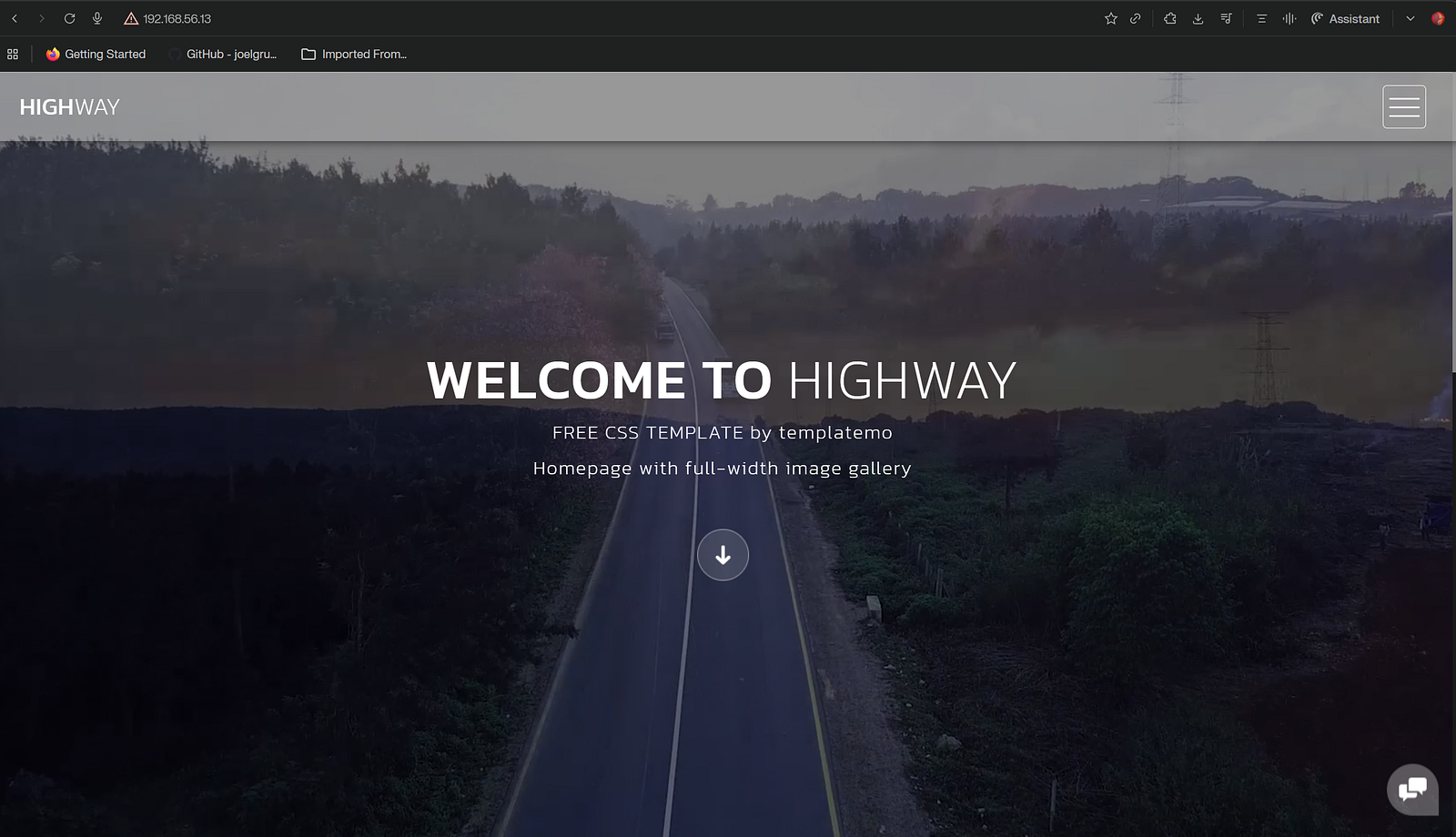
Step 7: Once done with all the steps mentioned above, go to the web browser and search for the private IP that you’ve given for your VM (in our case: 192.168.56.13) and ensure a successful redirection.
Setting up the HTML Webpage
For you to host something, you need to have a HTML web page, if you do then great if you don’t, like me, then please use the following link to download something that you like: https://www.tooplate.com/free-templates
Step 8: Select anything that you like and get the link for the zipped content of that webpage using the inspect element option. Once you start inspecting go to the networks tab and click on the download button. In the networks tab under the headers section you’ll find the link for the file you want to download.

Alternatively you can also download the file on your host machine and copy it to the vagrant synced folder (need to set it up in the Vagrant file)and you can see the file in your virtual machine.
Step 9: In your terminal navigate to /tmp folder and run wget [URL] of the HTML file.
Step 10: Use unzip [downloaded folder] and cd [unzipped folder].
Step 11: Now move all the files from this folder to /var/www/html/ using:
— cp -r * /var/www/html/
Step 12: Run systemctl restart httpd and go to the web browser and again open the VM’s private IP.
And Voila!! With this you’ve hosted your first webpage from your Linux machine in 12 easy steps.
Deploying a web server is often the ‘Hello World’ of infrastructure engineering, and for good reason. By combining Vagrant for automation, Linux for administration, and Apache for service delivery, you’ve just moved from theoretical knowledge to practical application. While we disabled the firewall today for the sake of simplicity, the real world of DevOps is all about layering security onto these foundations. Experiment with different templates, try modifying the HTML directly on your VM, and stay tuned — next time, we’ll look at how to secure this traffic and scale your deployment! Cheerios!!